The AWS account ID associated with your ThoughtSpot instance.
To obtain the account ID, contact your ThoughtSpot representative.
You must allow this ID to access your S3 resources and grant the required permissions.

Beta
ThoughtSpot can deliver webhook payloads and file attachments from a scheduled Liveboard event to your cloud storage bucket. When configured, ThoughtSpot can send payloads of up to 25 MB directly to the storage destination configured for the webhook delivery on your instance.
Before you begin, review the following prerequisites and ensure that you have the required setup for webhook configuration:
Identify the environment in which your instance is deployed. For example, Amazon Web Services (AWS) and Google Cloud Platform (GCP). For S3 destination integration for webhook delivery, the platform AWS account ID and IAM trust policy template are required. To retrieve these details, send a GET request to the /api/rest/2.0/webhooks/storage-config API endpoint.
Ensure that you have an AWS account where the target S3 bucket is hosted with the following permissions:
manage IAM identity providers and roles, including trust policies
attach or edit IAM policies
read and write to the target S3 bucket to test and validate integration
To configure a webhook in ThoughtSpot, you’ll need a user account with administration privileges or the Can Manage Webhooks role privilege. Ensure that you have the required privileges to set up webhook connection and monitor delivery status.
Ensure that a webhook communication channel is configured in your Org or at the cluster level on your instance.
If your ThoughtSpot instance is running in AWS, you can configure AWS cross-account access with an IAM role that AWS STS can assume by using temporary credentials.
For webhook integration, the following configuration setup is required:
| Requirement | Description |
|---|---|
AWS account ID | The AWS account ID associated with your ThoughtSpot instance. To obtain the account ID, contact your ThoughtSpot representative. |
AWS S3 bucket | Create an S3 bucket or use an existing S3 bucket that you intend to use as a storage destination for ThoughtSpot exports. You can also add a prefix, for example, |
Cross-account IAM role | The IAM role that ThoughtSpot will assume to deliver webhook content to an S3 bucket. For example, Trust policy A trust policy to allow the ThoughtSpot AWS account ID obtained from ThoughtSpot to assume the role. The IAM role’s trust policy must allow ThoughtSpot’s AWS account to call Permissions policy A permissions policy granting only the necessary S3 actions on your chosen bucket prefix. In the permissions policy, specify the S3 bucket name. Optionally, to restrict access to a specific folder or prefix, you can add the prefix. Note the IAM role ARN, bucket name, external ID, and other attributes and save the IAM policies. |
If your ThoughtSpot instance is hosted on a GCP cluster, you must configure OIDC and AWS STS AssumeRoleWithWebIdentity so that ThoughtSpot can securely obtain temporary AWS credentials to upload files to your S3 bucket, without storing long-lived AWS access keys.
For webhook integration, the following information is required:
| Requirement | Description |
|---|---|
ThoughtSpot service account ID | Contact ThoughtSpot Support to obtain your account ID. This account ID is required for OIDC identity creation and trust policy configuration. |
AWS S3 bucket | Create an S3 bucket or use an existing S3 bucket that you intend to use as a storage destination for ThoughtSpot exports. You can also add a prefix, for example, |
OIDC provider URL | Add the OIDC identity provider URL in the AWS console. For example, |
AWS IAM role | The IAM role that ThoughtSpot can assume via Web Identity trust policy
Where:
Permissions policy A permissions policy granting only the necessary S3 actions on your chosen bucket prefix. |
Provide the following information to your ThoughtSpot administrator:
AWS Role ARN. For example, arn:aws:iam::999888777666:role/thoughtspot-s3-upload
External ID. For example, ts-webhook-x7k9m2p4q1. Required for configuring a webhook on ThoughtSpot instances hosted in AWS. Not applicable to ThoughtSpot instances on GCP.
S3 bucket name. For example, ts-data-exports
S3 region. For example, us-east-1
S3 prefix for the folder (optional). For example, thoughtspot/.
To create a webhook in ThoughtSpot, the webhook feature must be enabled on your instance. Only ThoughtSpot users with administration privileges or the Can Manage Webhooks privilege are allowed to create or manage a webhook.
You can create a webhook with a cloud storage destination using the Webhooks page in the UI or through the create webhook REST API.
To configure the S3 storage properties in ThoughtSpot, the IAM role, external ID, S3 bucket name, and S3 region configured in your AWS account are required.
To create a webhook, send a POST request to the /api/rest/2.0/webhooks/create API endpoint.
|
Note
|
ThoughtSpot allows only one webhook for the Liveboard Schedule event type per Org. |
| Parameter | Description |
|---|---|
| String. Name of the webhook. |
| String. Description text for the webhook. |
| String. The listening endpoint URL where the webhook payload will be sent. The payload will include metadata and a URL referencing the file stored in S3. |
| Optional. A JSON map of key-value pairs to append as query parameters in the webhook URL. |
| Array of strings. List of events to subscribe to. Specify the event as |
| Configuration for storage destination. Specify the following parameters:
*
|
| Array of key-value pairs. Allows including custom HTTP headers in every outbound webhook HTTP request that ThoughtSpot sends to the configured destination URL. When configured, ThoughtSpot sends these headers in addition to the authentication headers and standard HTTP headers such as You can use this parameter to pass arbitrary headers with custom metadata in key-value pairs, as required by the webhook receiver endpoint: |
curl -X POST \
  --url 'https://{ThoughtSpot-Host}/api/rest/2.0/webhooks/create'  \
  -H 'Accept: application/json' \
  -H 'Content-Type: application/json' \
  -H 'Authorization: Bearer {AUTH_TOKEN}' \
  --data-raw '{
  "name": "Webhook_S3",
  "url": "https://webhook-destination-site.com",
  "events": [
    "LIVEBOARD_SCHEDULE"
  ],
  "storage_destination": {
    "storage_type": "AWS_S3",
    "storage_config": {
      "aws_s3_config": {
        "bucket_name": "my-company-data-exports",
        "region": "us-east-1",
        "role_arn": "arn:aws:iam::999888777666:role/thoughtspot-s3-upload",
        "external_id": "ts-webhook-x7k9m2p4q1",
        "path_prefix": "thoughtspot/"
      }
    }
  }
}'If the API request is successful, ThoughtSpot returns the webhook configuration properties in the API response.
{
   "id":"875f1497-fc98-436e-af59-28dc74dc324e",
   "name":"webhook-S3",
   "description":"Webhook for S3",
   "org":{
      "id":"2100019165",
      "name":"test-org"
   },
   "url":"https://webhook-destination-site.com",
   "url_params":null,
   "events":[
      "LIVEBOARD_SCHEDULE"
   ],
   "authentication":null,
   "signature_verification":null,
   "additional_headers":null,
   "creation_time_in_millis":1782867817910,
   "modification_time_in_millis":1782867817910,
   "created_by":{
      "id":"08c6b203-ff6e-4ed8-b923-35ebbbfef27b",
      "name":"user@thoughtspot.com"
   },
   "last_modified_by":null,
   "storage_destination":{
      "storage_type":"AWS_S3",
      "storage_config":{
         "aws_s3_config":{
            "bucket_name":"my-company-data-exports",
            "region":"us-east-1",
            "role_arn":"arn:aws:iam::999888777666:role/thoughtspot-s3-upload",
            "external_id":"ts-webhook-x7k9m2p4q1",
            "path_prefix":"thoughtspot/"
         },
         "gcp_gcs_config":null
      }
   },
   "status":"ENABLED"
}If the new Webhooks page is enabled on your instance, you can create a webhook via the UI. To create a webhook with an AWS S3 storage as the target destination for payload delivery:
Go to Develop > Customizations and click Webhooks.
In the Webhooks page, click Create webhook.
In the Create webhook modal, configure the following:
Name: A display name for the webhook.
URL: The fully qualified HTTPS URL of the endpoint that will receive webhook payloads.
Description: (optional) A short description of the webhook’s purpose.
Event type: Specify the ThoughtSpot event types to subscribe to. Ensure that Liveboard schedule is set as the event type.
To configure storage destination, select the File storage checkbox and specify values for the following properties:
Storage provider: For AWS S3 storage, ensure that Amazon S3 is selected.
Bucket name: Name of the S3 bucket. For example, my-company-data-exports.
Region: S3 region. For example, us-east-1
Role ARN: AWS Role ARN. For example, arn:aws:iam::999888777666:role/thoughtspot-s3-upload
External ID: External ID. For example, ts-webhook-x7k9m2p4q1. Required for configuring a webhook on ThoughtSpot instances hosted in AWS. Not applicable to ThoughtSpot instances on GCP.
Path prefix: Optional. Path prefix for organizing objects within the S3 bucket. For example, thoughtspot/.
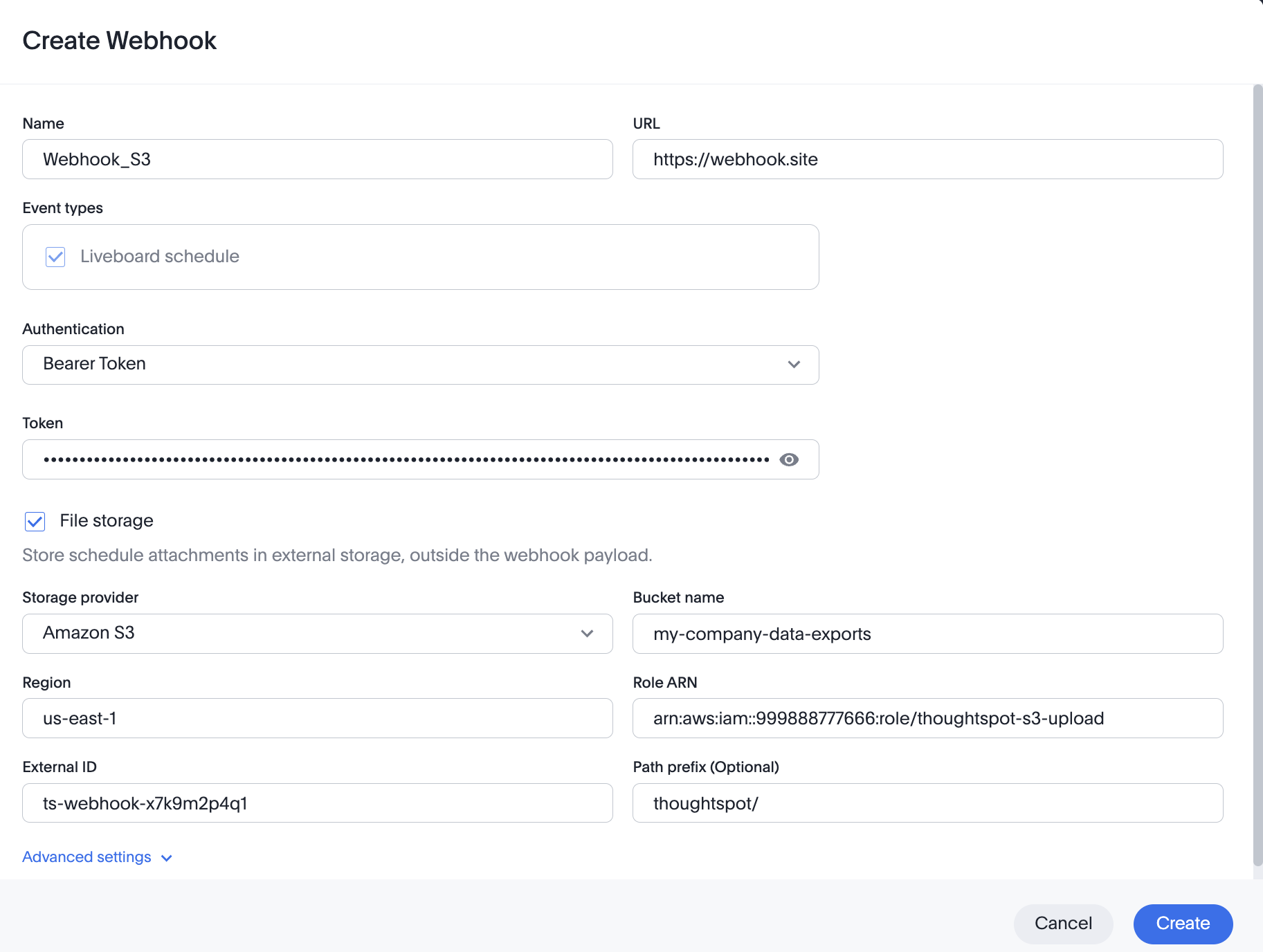
To configure advanced settings such as signature verification, custom headers, and URL query parameters, click Advanced settings and configure the fields as required.
Click Save.
If the webhook is created successfully, it is added to the Webhooks list and enabled by default.
To view the webhook details, use one of the following options:
Through the REST API:
To retrieve webhook configuration details, use the /api/rest/2.0/webhooks/search API endpoint.
Using the UI:
If the new Webhook experience is enabled on your instance, go to the Develop > Customization > Webhooks page. Check the list in the Webhooks to view the details and verify if the webhook connection is activated.
To validate webhook configuration status, use one of the following options.
Using REST API:
To validate the communication channel configuration for webhook delivery, use the /api/rest/2.0/system/communication-channels/validate API endpoint.
Using the UI:
If the new Webhook experience is enabled on your instance, go to the Develop > Customization > Webhooks page. The Webhooks page displays a list of webhooks configured in the current Org context.
To validate the webhook channel configuration:
In the Webhooks page, select the webhook row, and click Send test event.
Verify the delivery status.
If the validation returns errors, update the webhook configuration properties to resolve the errors.
To monitor the webhook delivery and status, use one of the following options:
Through the REST API:
To verify the webhook delivery and job status, use the /api/rest/2.0/jobs/history/communication-channels/search API endpoint. For more information, see Monitor webhook delivery and job status.
Using the UI:
If your ThoughtSpot instance has new Webhooks page enabled, use the Webhooks menu option in the Develop page to view the details of the webhook:
Go to the Develop > Customization > Webhooks page.
The Webhooks page displays status cards and delivery rate for the webhooks configured in the Org.
Click the webhook from the list and verify the delivery details. For more information, see Monitoring delivery status.
Webhook delivery to an S3 storage destination includes the following sequence of events:
ThoughtSpot requests temporary AWS credentials by calling sts:AssumeRole (AWS setup) or sts:AssumeRoleWithWebIdentity (GCP) with your specified Role ARN and External ID.
AWS Security Token Service (STS) checks the request against your trust policy.
If the request is valid, AWS STS issues temporary credentials, valid for approximately an hour.
ThoughtSpot uses these credentials to upload files to your designated S3 bucket.
To verify that ThoughtSpot is delivering webhooks to your S3 bucket:
Access your S3 bucket.
Verify whether the webhook payload is delivered to the correct bucket and prefix.
Review the object content to confirm the payload matches the expected schema.
Verify the attachments and timestamps in the logs.
If files are not delivered to your S3 bucket, check the logs for errors.
The common causes for webhook delivery failure are:
| Issue | Resolution |
|---|---|
Objects not delivered to the bucket | This occurs in the following scenarios: * When the IAM role assumption fails * When the S3 upload fails due to permission errors * Webhook connection configuration errors To resolve IAM role assumption issues: * Ensure that the IAM trust policy includes the correct ThoughtSpot service account ID. To resolve S3 upload permission errors: Ensure that the IAM permission or S3 bucket policy allows the IAM role to write objects and has the correct S3 actions configured. To write content to the S3 bucket, the S3 uploads can also fail due to errors in webhook configuration in ThoughtSpot. ThoughtSpot can control which buckets can be accessed, what actions are permitted, and when to revoke access. However, ThoughtSpot cannot read files in existing S3 storage that is not integrated with webhooks, access other prefixes, or view or modify objects in the bucket. To ensure that there is no mismatch in the configuration: * Verify the external ID used in the webhook configuration. Note that external IDs are case-sensitive. * Ensure that the S3 bucket name and Role ARN configured in ThoughtSpot match the S3 bucket name and ARN of the IAM role in your AWS account. |
Webhook is configured but not triggering | Verify that the webhook is enabled and that the alert condition for the scheduled event is met. Contact ThoughtSpot Support if the issue persists. |
Configuration compatibility issues | If you are using encryption, lifecycle policies, or special access controls, ensure that they are compatible with your webhook configuration. |
See also: Webhooks overview, Webhooks UI, and Webhook APIs documentation.
AWS IAM documentation and IAM and Amazon S3 troubleshooting guide.